
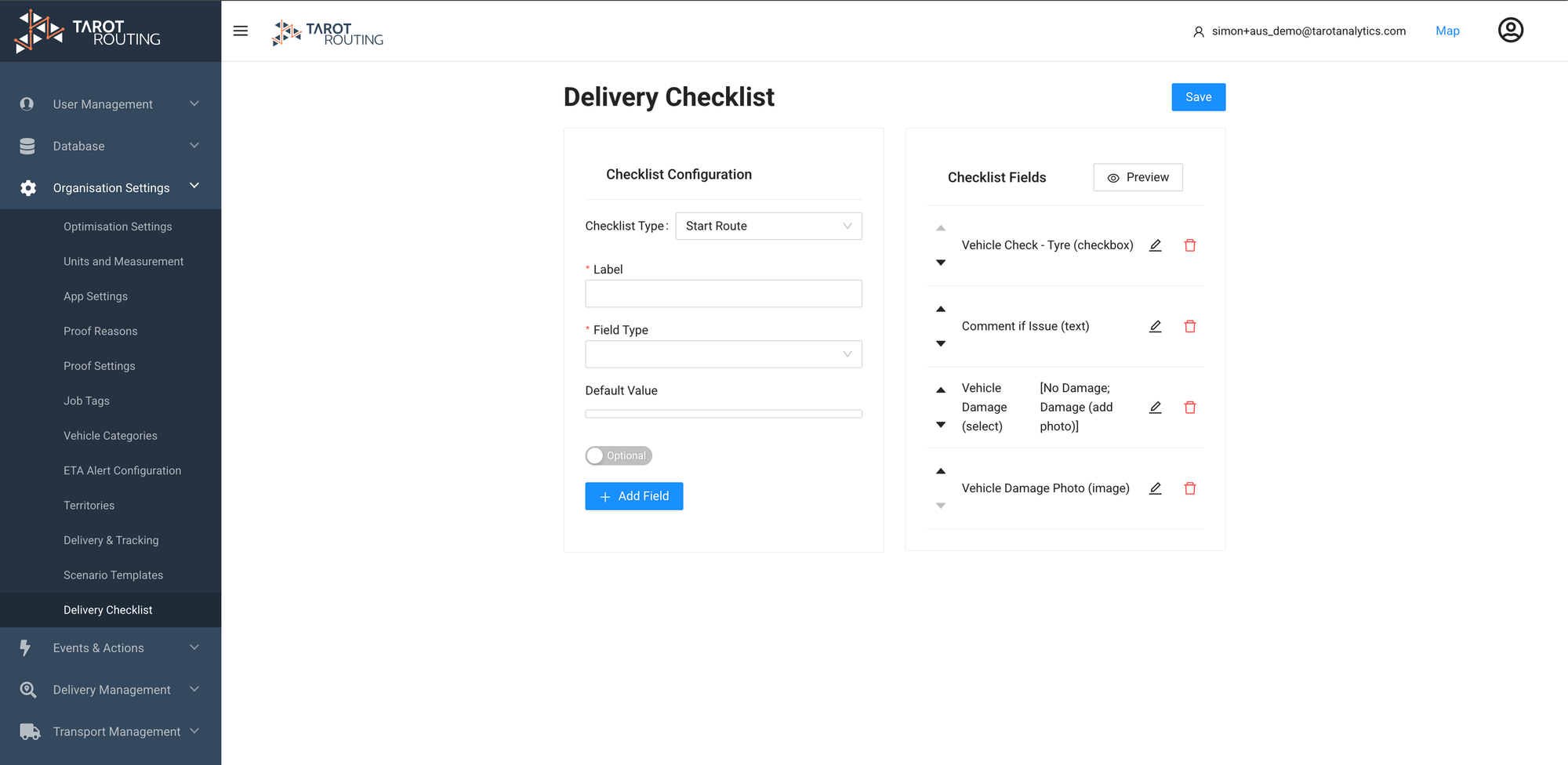
Start Route Checklists in Tarot Routing allow Users to gather important Proof information, such as vehicle safety checks, before commencing a route. This feature helps ensure operational safety and compliance.
This tutorial will guide you through setting up and using Start Route Checklists.
Step 1: Create a Checklist in Tarot Routing
To create a Start Route Checklist:
- Log in to Tarot Routing.
- Navigate to Organisation Settings in the Admin Panel.
- Select Delivery Checklist.
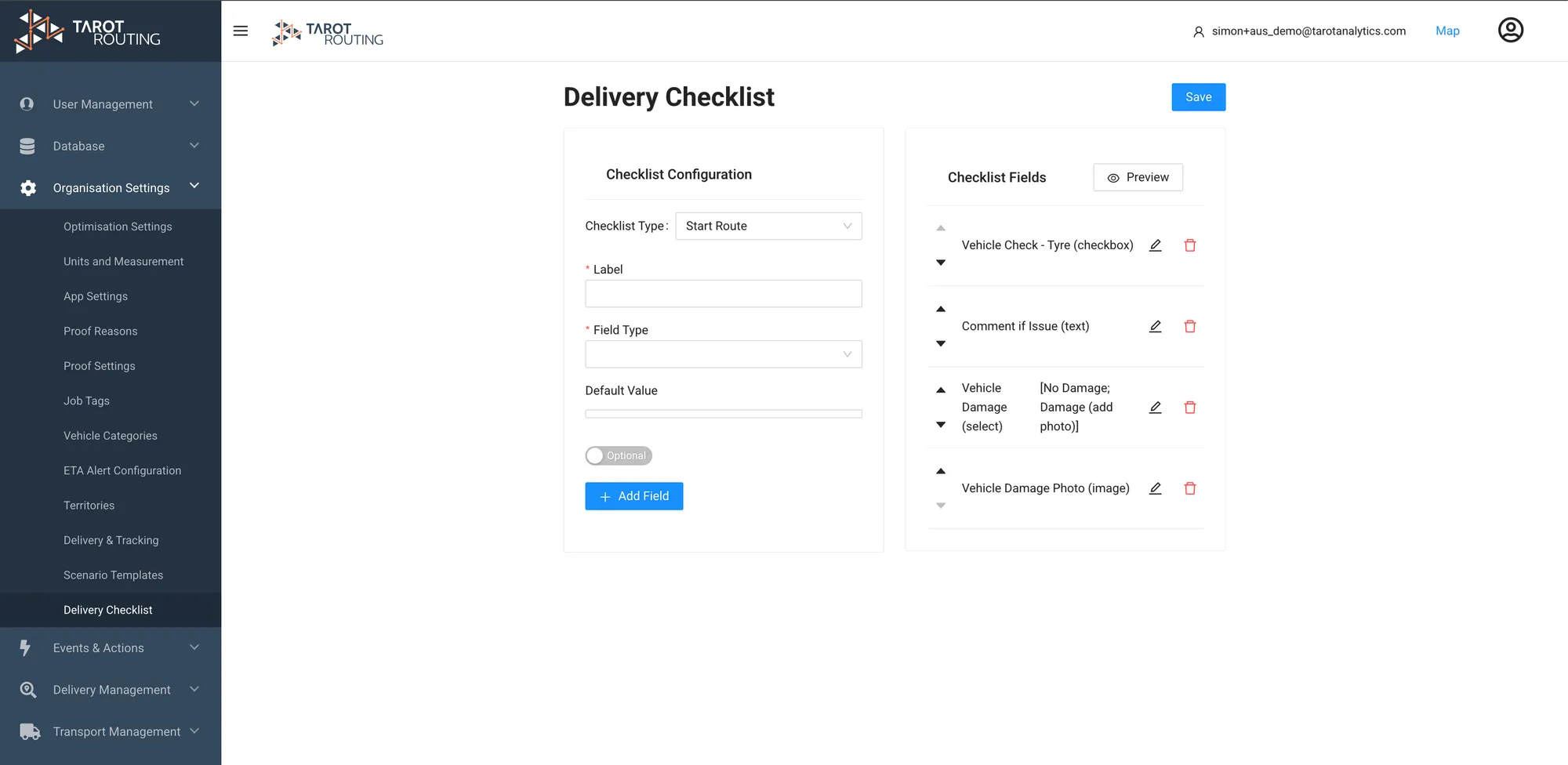
- Under Checklist Configuration, set the Checklist Type to Start Route.
- Add fields as required. In this example we have included:
- Checkbox (e.g., Vehicle Check - Tyre)
- Text (e.g., Comment if Issue)
- Select (e.g., Vehicle Damage)
- Image (e.g., Vehicle Damage Photo)
- Click Save to confirm the Checklist configuration.
Step 2: Prepare to Start Route
Using the Tarot Driver App:
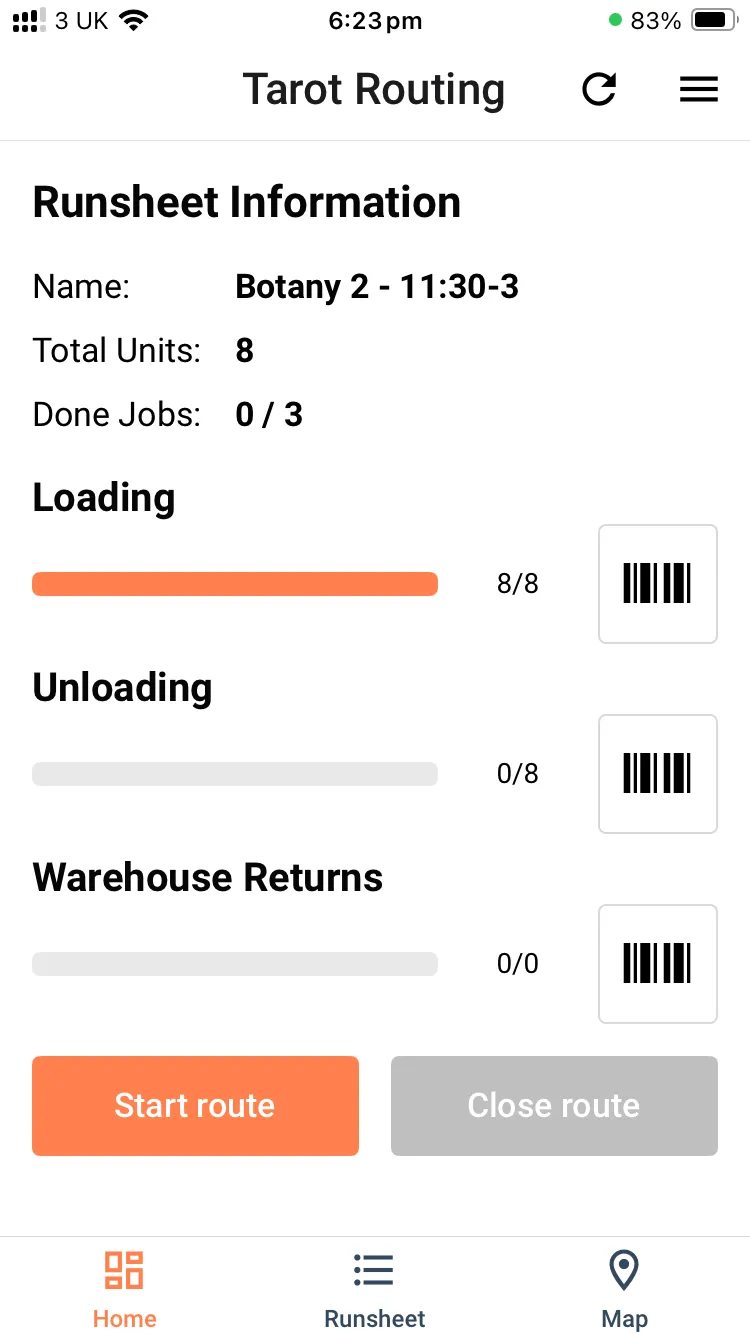
- Scan a Runsheet QR Code and load all Units for the Run.
- Ensure all Units are marked as loaded to proceed with Start Route.
Step 3: Access the Checklist Button
Once all Units are loaded:
- Click Start Route.
- If a Checklist is configured, an additional Checklist button will appear alongside the normal Start Route information.
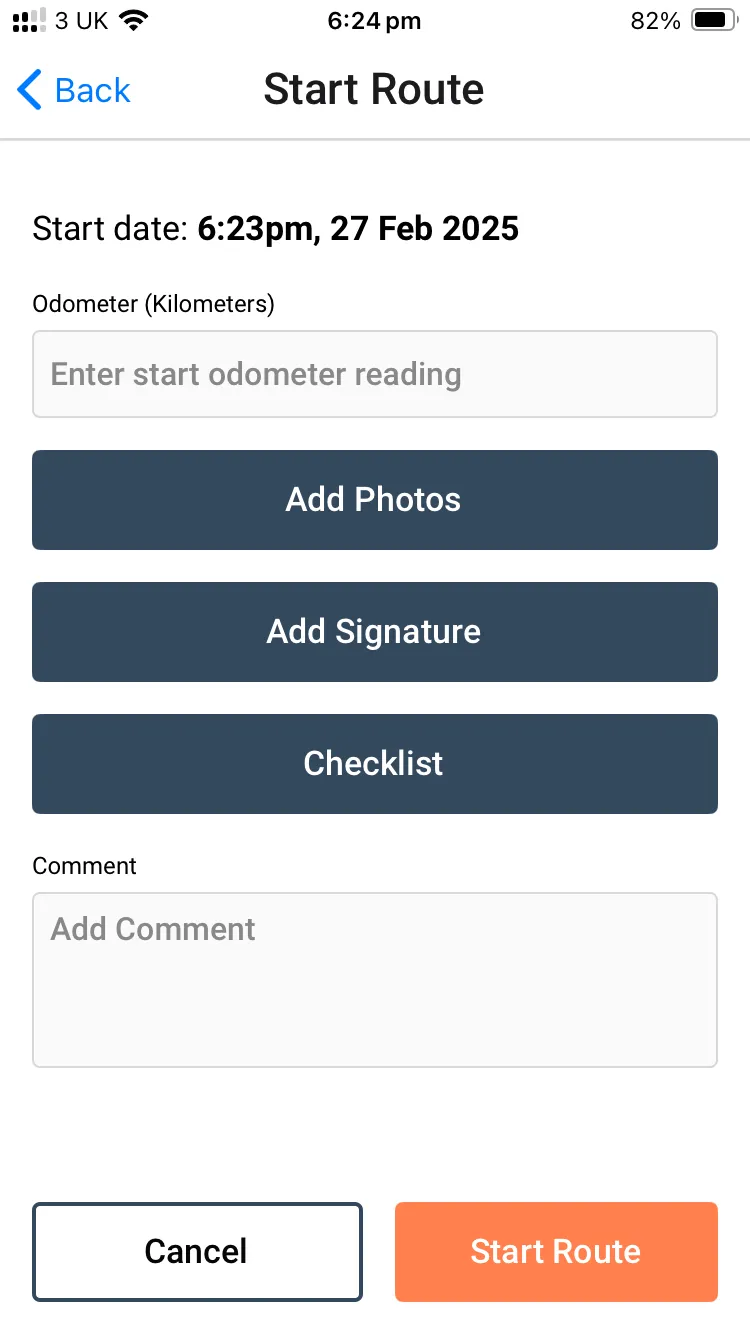
Step 4: Open the Checklist
- Click on the Checklist button to open the configured Checklist for the route.
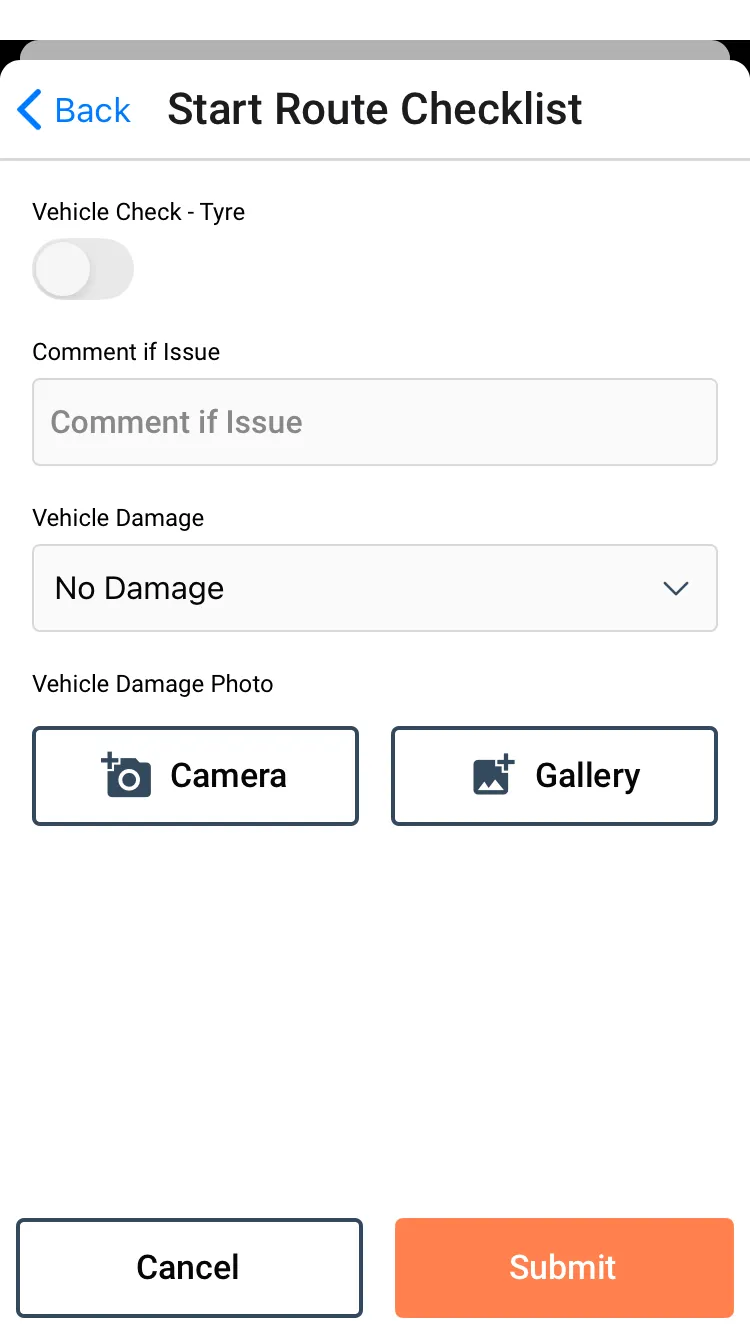
- This will display all fields configured in the Admin Panel.
Step 5: Fill Out the Checklist
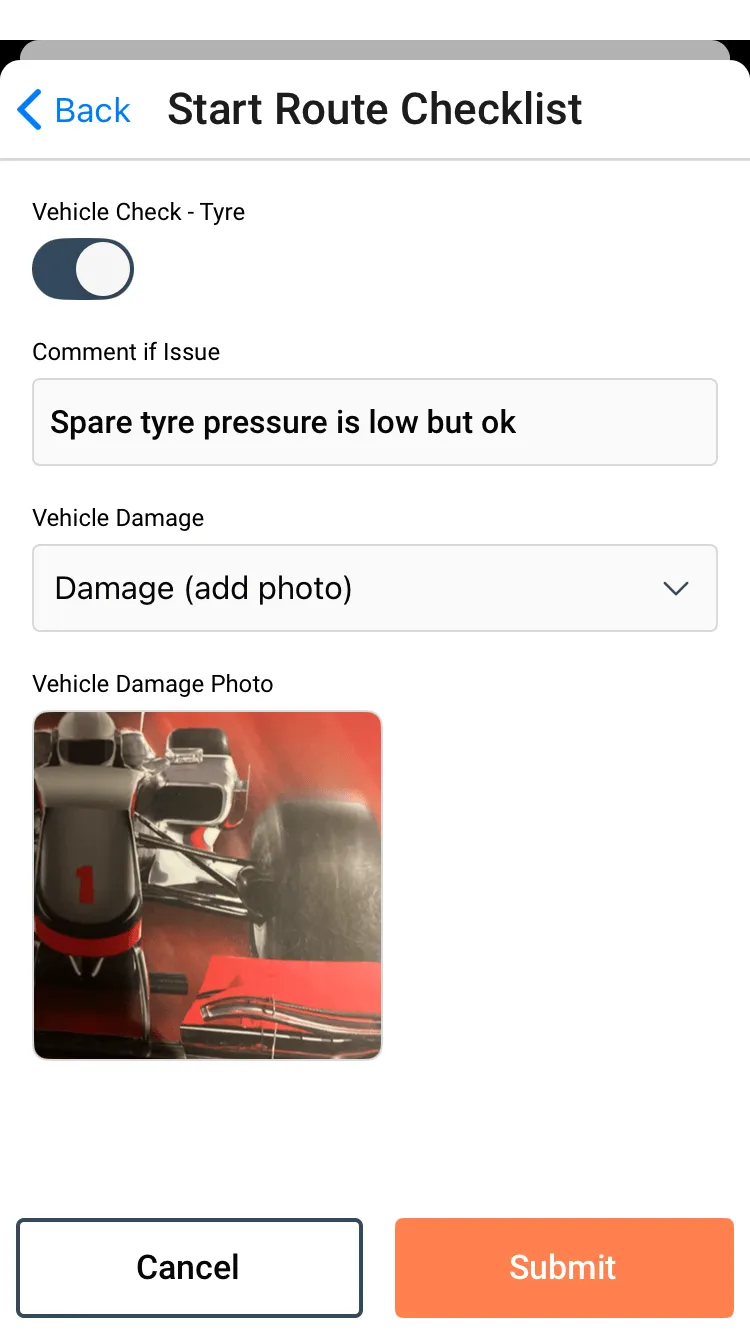
- Complete the Checklist by filling out all required fields.
- For example this may include:
- Toggling checkboxes (Tyre Check)
- Adding additional comments comments
- Selecting from dropdowns (e.g., No Damage or Damage)
- Uploading photos or signatures
- Once completed, click Submit and proceed to Start Route.
- The Driver can now continue their deliveries as per the Tarot Optimised Route.
Step 6: View Checklist Submissions in Tarot Routing
To view the Checklist submission:
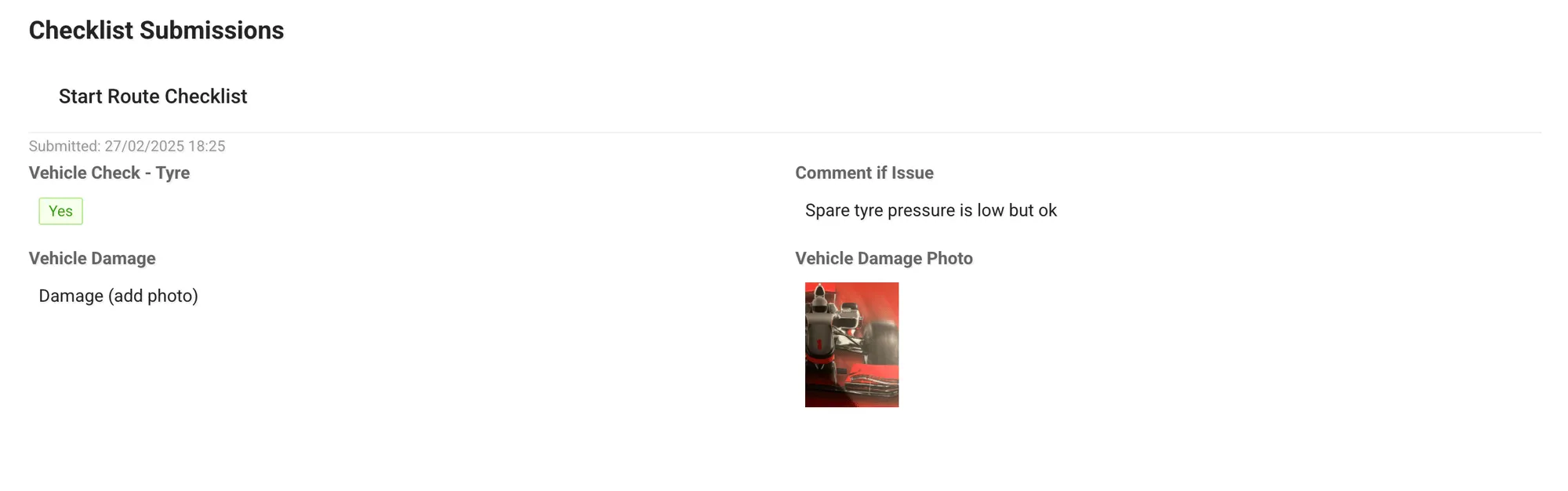
- In Tarot Routing Platform, navigate to Tracking Stage.
- Right-click on the Run and select Run Details.
- Go to the Proofs Tab to view the Checklist information, including any comments and photos.
Tips:
- If any mandatory or required fields are configured, Drivers must complete them to proceed.
Need Help?
If you encounter any issues or need assistance, feel free to reach out to book a demo with the Tarot team.