
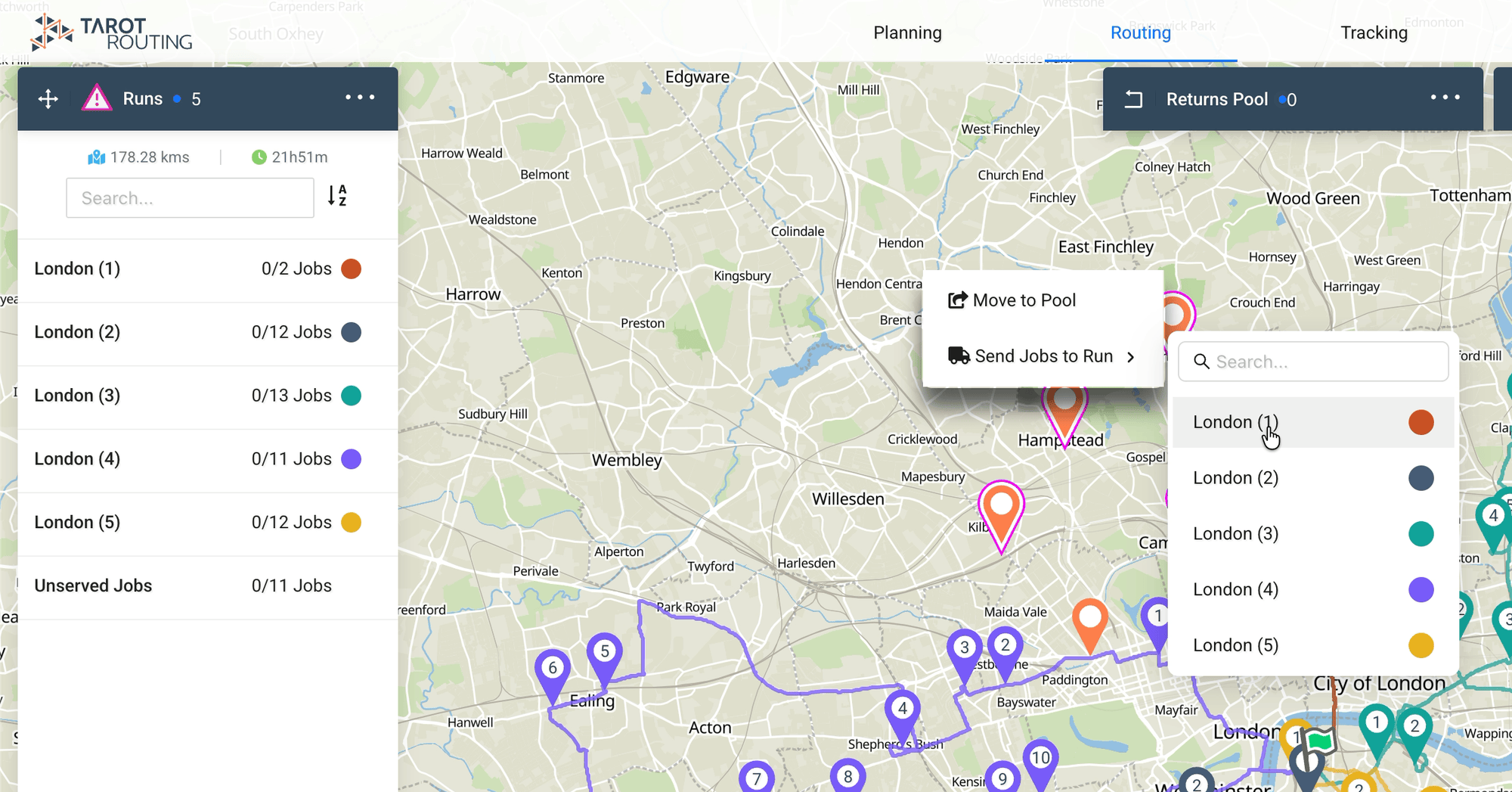
With release 2.1.10, Tarot Routing introduces a great new feature: multi-selecting Jobs directly from the Map using SHIFT + Click and Drag. This makes it faster and easier to group and manage Jobs visually during both the Planning and Routing stages.
In this guide, we’ll walk you through exactly how to use this feature and what actions you can take once Jobs are selected.

Step-by-Step: Select Jobs on the Map
1. Open Your Scenario
Log in to Tarot Routing and open the Scenario you want to work on.
Make sure you are in either the Planning or Routing stage.
2. SHIFT + Click and Drag
Hold down the SHIFT key on your keyboard.
Then Click and Drag across the Map to draw a selection box around the Jobs you want to select.
🟪 Selected Jobs will be highlighted on the Map.
3. Choose Your Action
Depending on the current Scenario stage, you’ll be presented with different options:
- Planning Stage
- 📂 Send to Job Pool: This is the only available action in Planning. Use it to remove Jobs from the Scenario and hold them for later.
- Routing Stage
- 📂 Send to Job Pool: Remove Jobs from their assigned Runs and the Scenario.
- 🚚 Move to Run: Reassign the selected Jobs to a different Run in the Scenario.
A contextual menu will appear immediately after selection to let you take action and choose which Run you want to reassign the Jobs to.
4. Re-optimise the Run

Jobs sent to a Run are added at the end of it. To put them in the most efficient order, open the Runs panel menu, choose Timeline, then click Re-optimise on that Run. Tarot Routing re-sequences the Run and shows the impact on the Scenario’s distance and time.
Tips for Best Use
- This tool is ideal for visual cleanups—e.g., selecting outliers or unoptimised Jobs clustered in one region.
- By default, Jobs reassigned to a Run will be Sequenced at the end of the Run.
- You can continue using individual right-click actions for Jobs if you only need to move one at a time to the Job Pool.
Summary
Multi-selecting Jobs from the Map gives you quick visual control over your Scenario. Whether you’re fine-tuning an optimised run or doing a manual clean-up before dispatch, this feature makes map-based planning smarter and faster.
Have feedback or a use case you’d like to share? Reach out to the Tarot team—we’d love to hear from you!