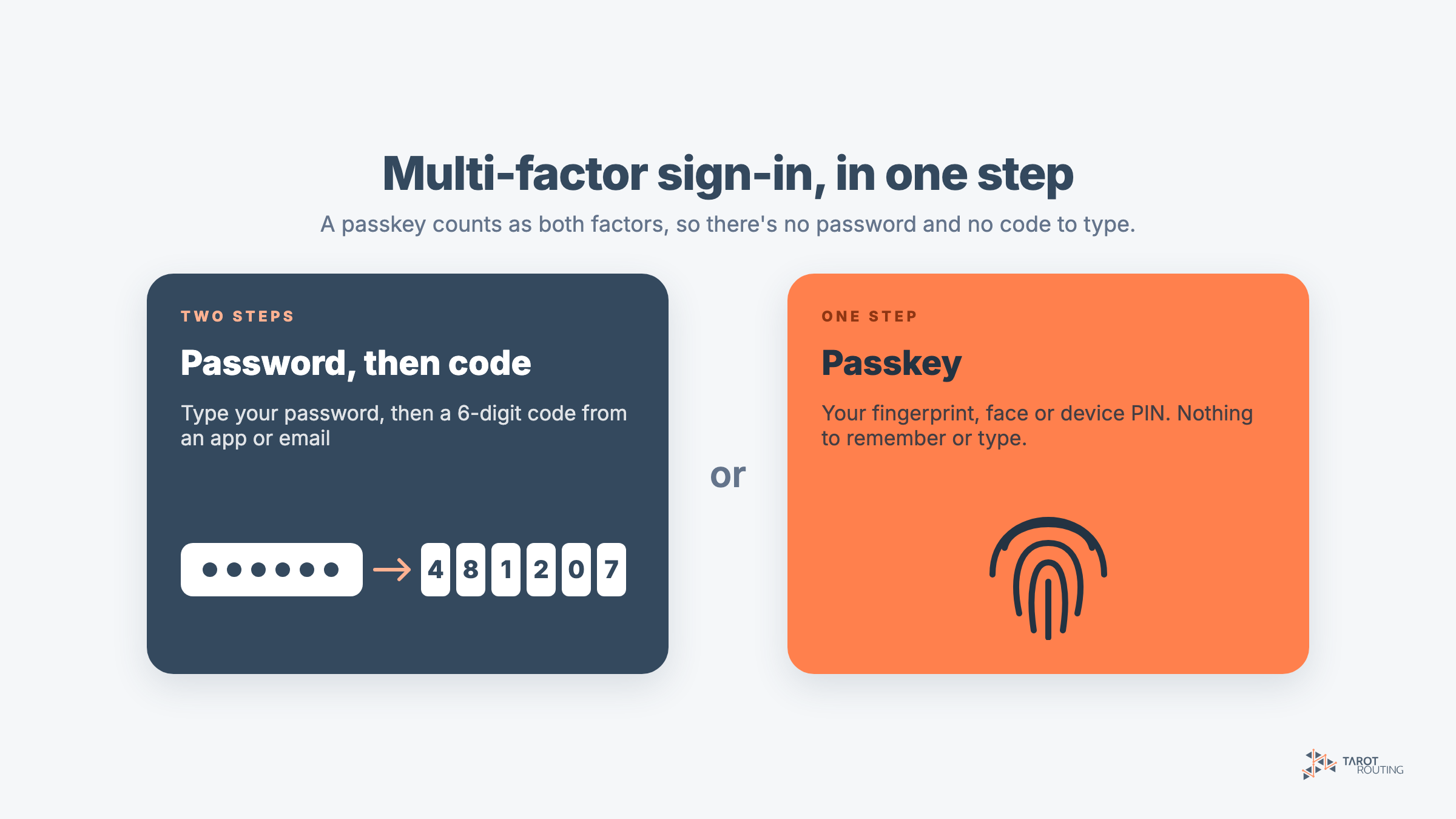
Tarot Routing now supports multi-factor authentication (MFA), and the easiest way to use it is a passkey. Set up a passkey once and you sign in with your fingerprint, face or device PIN, the same way you unlock your computer or phone. There’s no password to type, no code to wait for, and the passkey counts as both factors on its own.
This tutorial shows you how to set up a passkey in Tarot Routing, how to sign in with it, and what else changed about signing in with release 2.1.26.
What’s new in signing in to Tarot Routing
- Multi-factor authentication for every user. Turn it on in your own Authentication settings, and a stolen password is no longer enough to get into your account.
- Four ways to sign in. Passkeys, your password, a sign-in email with a link or code, and authenticator apps such as Google Authenticator, Microsoft Authenticator or 1Password.
- Organisation-wide MFA. Administrators can require MFA for everyone in the organisation.
- New users choose how they sign in. When an administrator adds a user, Tarot Routing emails them an invitation to set up a passkey, a password or email sign-in, so administrators no longer pick passwords for people. New free trial accounts get the same choice.
Drivers aren’t affected. They still load their Runs in the Driver App by scanning a run sheet or opening a link, with no account or password.
Why use a passkey
- It can’t be phished. A passkey only works on the real Tarot Routing site, so a look-alike sign-in page can’t trick you into handing it over.
- There’s nothing to remember or reuse. No password to forget, write down or reuse across other sites.
- It’s MFA in one step. Something you have (your device) and something you are or know (your fingerprint, face or PIN), in a single prompt.
- You already have what you need. Touch ID, Face ID, Windows Hello, an Android phone’s fingerprint reader, a password manager that saves passkeys, or a hardware security key.
Before you start
- You need a Tarot Routing user account on the platform: planners, dispatchers and administrators.
- Use a computer or phone with a screen lock (fingerprint, face or PIN), a password manager that saves passkeys, or a hardware security key.
- Have your password to hand, or access to your email, so you can confirm it’s you.
How to set up a passkey in Tarot Routing
Step 1: Open Authentication settings
Navigate to the Admin panel in Tarot Routing and select Account. Then select the Authentication settings tab.
Step 2: Confirm it’s you
Tarot Routing asks you to confirm who you are before you change how you sign in, so nobody can add their own passkey to your account from a computer you’ve left unlocked.
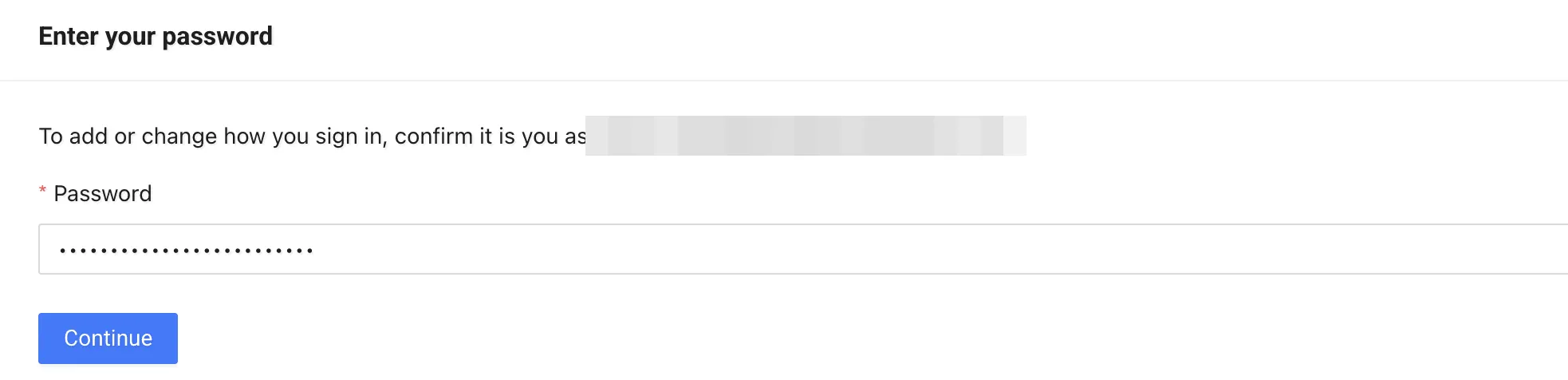
Enter your password and click Continue. If you sign in by email instead, click Send Login Email and use the code or link in the email. If you already use MFA, Tarot Routing asks for your second factor too.
Step 3: Click Add passkey
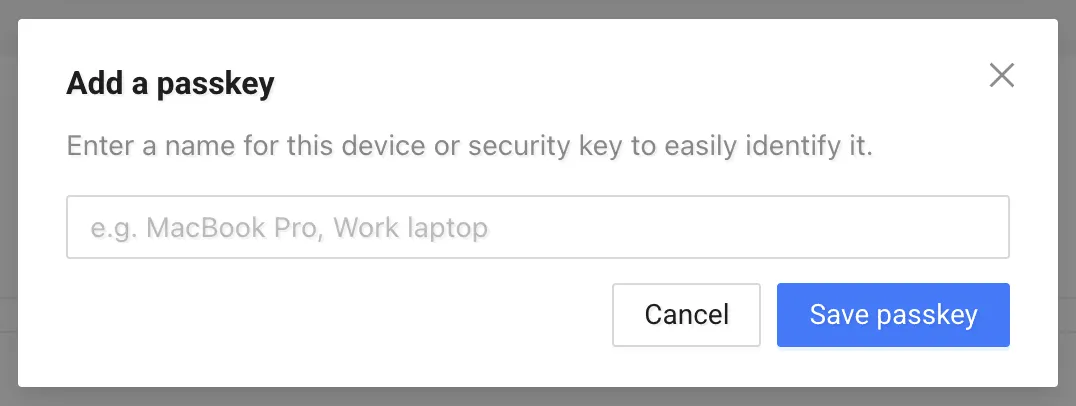
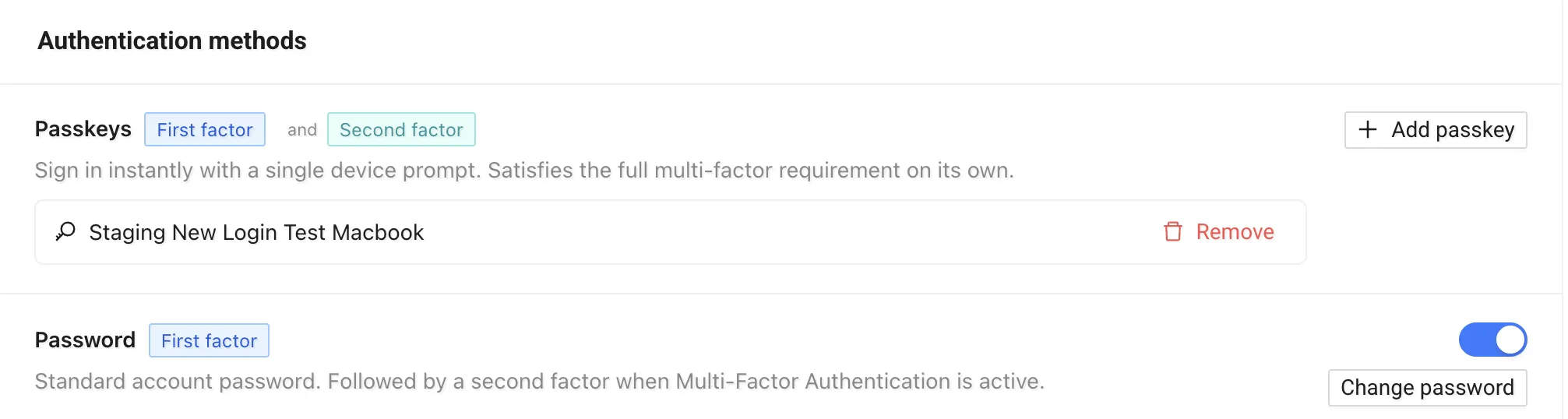
Under Authentication methods, find Passkeys and click Add passkey. Give the passkey a name you’ll recognise later, such as Work computer or Office PC, and click Save passkey.
Step 4: Save it with your fingerprint, face or PIN
Your browser or operating system now asks where to save the passkey: on this device, in your password manager, on your phone or on a security key. Choose one and confirm with your fingerprint, face or device PIN.
Step 5: Check your passkey is ready
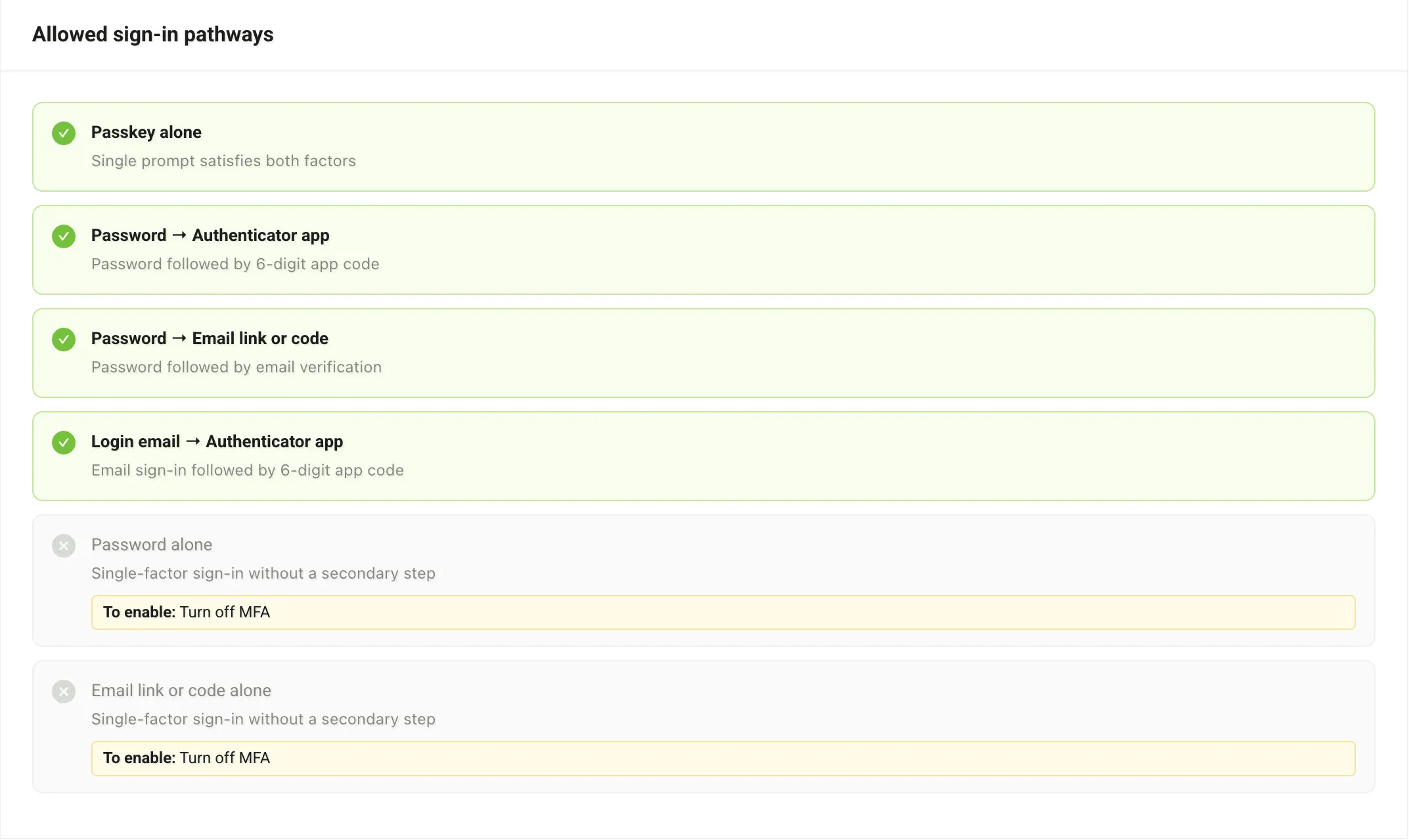
Your passkey now appears under Passkeys with the name you gave it, and Passkey alone has a green tick under Allowed sign-in pathways. Tarot Routing also emails you to say a sign-in method was added.
How to sign in with your passkey
Next time you open Tarot Routing:
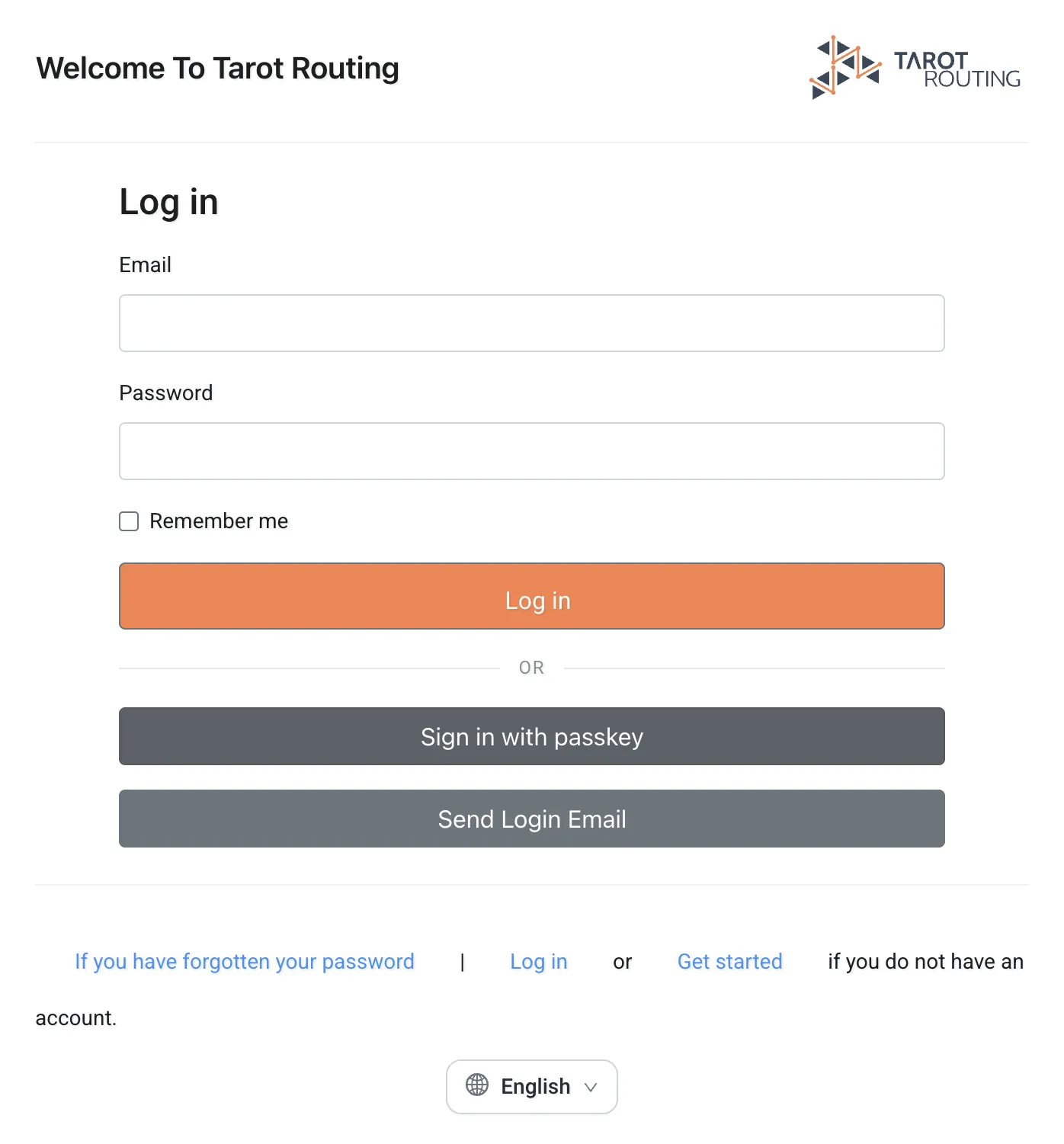
- Click in the Email field. If your browser offers your passkey in its suggestions, choose it. Otherwise, click Sign in with passkey.
- Confirm with your fingerprint, face or PIN.
That’s it. You don’t need to type your email address or password, and no code follows.
Turn on multi-factor authentication
A passkey makes signing in faster, but your password still works on its own until you turn on MFA. To close that gap:
- In Authentication settings, look at Allowed sign-in pathways and check that Passkey alone has a green tick.
- Turn on Use Multi-Factor Authentication (MFA).

From your next sign-in, a password alone or an email alone isn’t enough. Your passkey still signs you in with one step, while a password needs a second step: a code from an authenticator app, or a sign-in email.
If your organisation already requires MFA, the switch shows Required by organisation and is already on.
Tips for using passkeys
- Add a passkey on each computer you use, or save it to a password manager that syncs, such as iCloud Keychain, Google Password Manager or 1Password, so it follows you between devices.
- Keep a backup method. Add an authenticator app on your phone too, so losing your computer doesn’t lock you out. Tarot Routing has no recovery codes.
- Don’t save a passkey on a shared computer. If several people share one login on a computer, such as a desktop in the warehouse, anyone who can unlock it could use a passkey saved there. Use a hardware security key, or your password with an authenticator app, instead.
- Remove passkeys you no longer use. If a computer is replaced, lost or handed to someone else, click Remove next to its passkey in Authentication settings.
For administrators: require MFA for your organisation
To make MFA compulsory for everyone in your organisation, open Admin panel → Organisation Settings → Authentication and turn on Require MFA.
- Nobody is signed out. MFA applies the next time each user signs in.
- Users without a passkey or second factor are asked to set one up before they can continue.
- If someone loses every sign-in method, open them on the Users tab and click Reset sign-in methods. They’ll get an email with a link to set up new ones.
Tell your team before you switch it on, and recommend passkeys: they’re the least extra work for planners who sign in every day.
Passkeys and multi-factor authentication: frequently asked questions
Do drivers need to set up a passkey?
No. Drivers load their Runs in the Driver App with a run sheet, not a user sign-in, so nothing changes for them.
Does Tarot Routing see my fingerprint or face?
No. Your device checks your fingerprint, face or PIN and only tells Tarot Routing that the check passed. Your fingerprint and face never leave your device.
Do I have to turn on multi-factor authentication to use a passkey?
No. A passkey works whether multi-factor authentication is on or off, and it already counts as both factors.
Can I still sign in with my password?
Yes. Passwords still work. With multi-factor authentication on, Tarot Routing asks for a code from an authenticator app or a sign-in email after your password.
What if I lose the device my passkey is on?
Sign in another way, open Authentication settings and remove the lost passkey. If none of your sign-in methods work, an administrator in your organisation can reset your sign-in methods, or Tarot support can.
Can I use Planner Login in the Driver App with multi-factor authentication?
Not yet. Planner Login in the Driver App (Planner Mode) signs in with an email and password only. While multi-factor authentication is on, Planner Login will not sign you in. A Driver App update that adds multi-factor authentication and passkeys is on the way.
Learn more
The User Docs cover every sign-in setting in detail, including authenticator apps, email sign-in and what to do if you’re locked out:
- Authentication Settings for every user
- Organisation Settings: Authentication for administrators