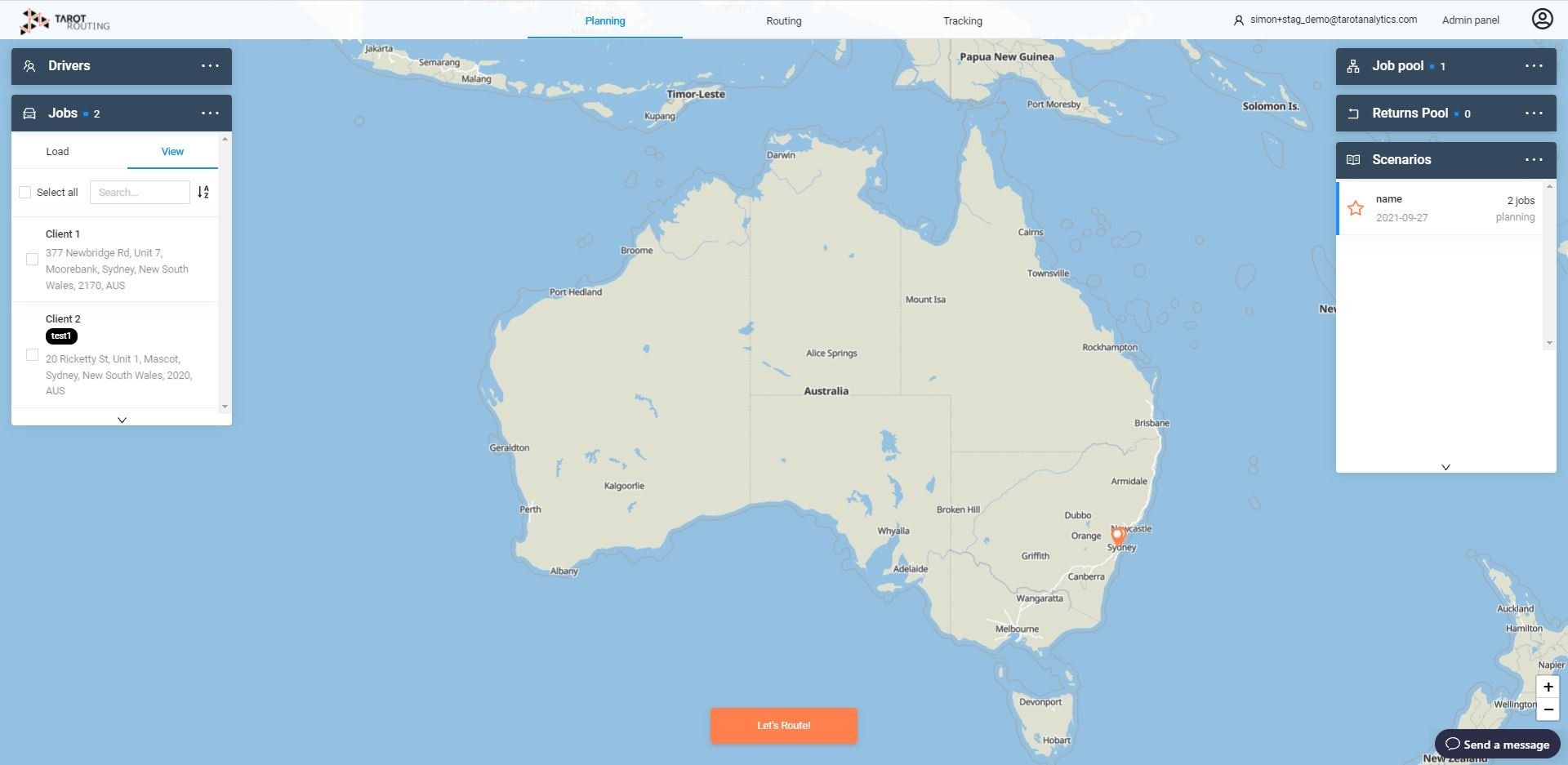
We are releasing a map redesign for Tarot Routing and here are some of the new features we have developed to make it faster and easier for you to plan, optimise, dispatch, and track your routes, jobs, and drivers.
All core features and functionality remain the same but, if you have an issue, don’t hesitate to reach out and contact our support team.
Move Panels on the Map
Work how you want to. You can now move any map panel within Tarot Routing by clicking on the icon and dragging it to where you it to be

Tarot will remember where you last placed a panel for next time you log in
Be Aware!
If you’re a long-term user there are some small changes
1. When you log in the panels will be in a slightly different order
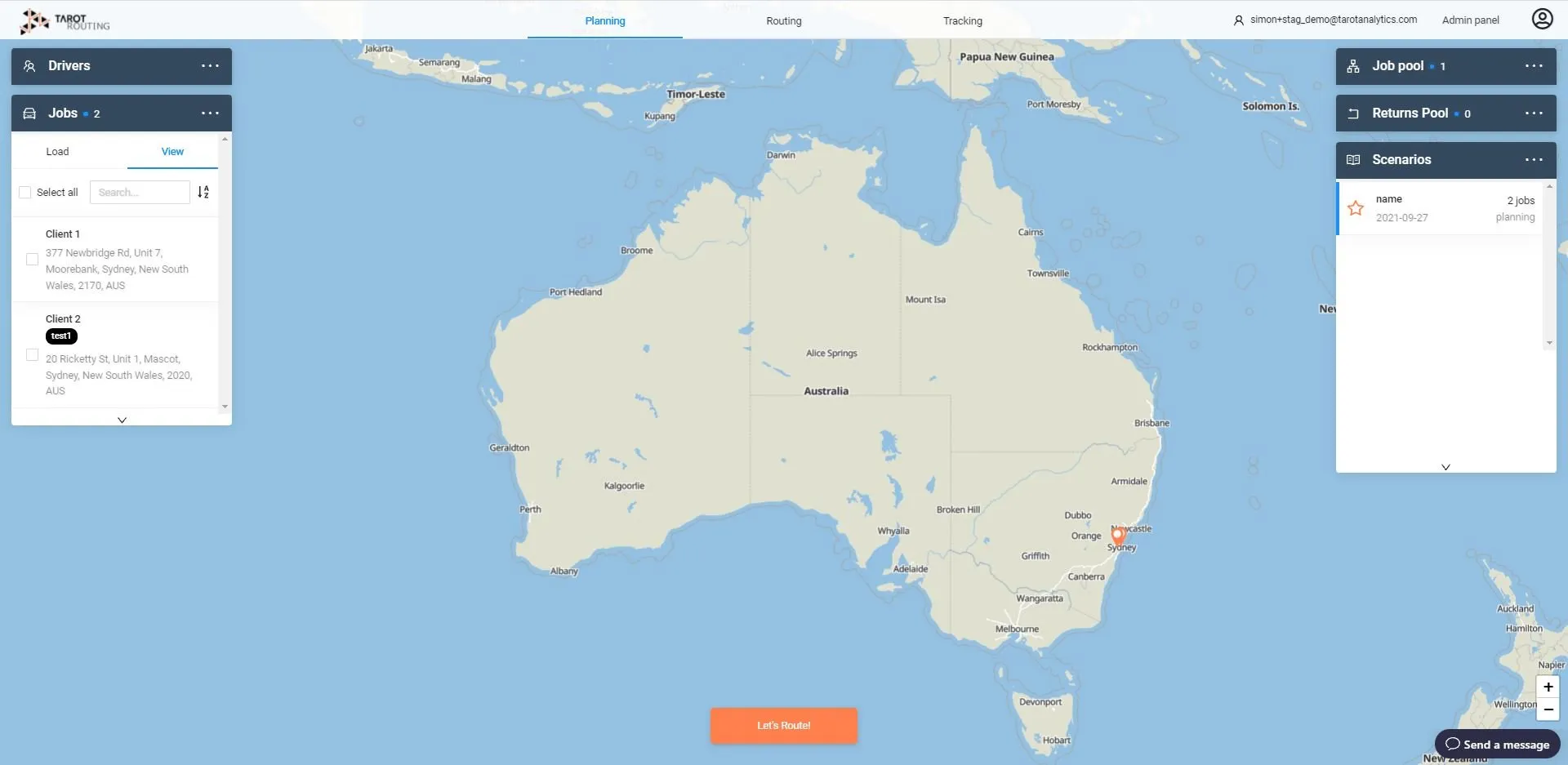
2. When you expand a panel, you might cover another panel. Don’t worry click and drag to move it out of the way

3. Double click on a panel to move it back to its default position

4. The action bar on a panel is now always on the top right of the panel

Extend panels on the Map
Click and drag to see more (or less) with extendable panels

Double clicking will extend the panel to the bottom of your screen

Updated Timeline
We’ve also updated the timeline to make it easier to manually adjust jobs
Make it transparent (or not)



Zoom in for fine grain control, click and drag to move around in the timeline
Make the timeline full screen, left or right to suit how you work
What’s Next?
Design updates for modals (those pop-up things) in the map interface. We are working on updating modals to better display information and make it easier for users to edit and make changes.
Stay tuned for more!