
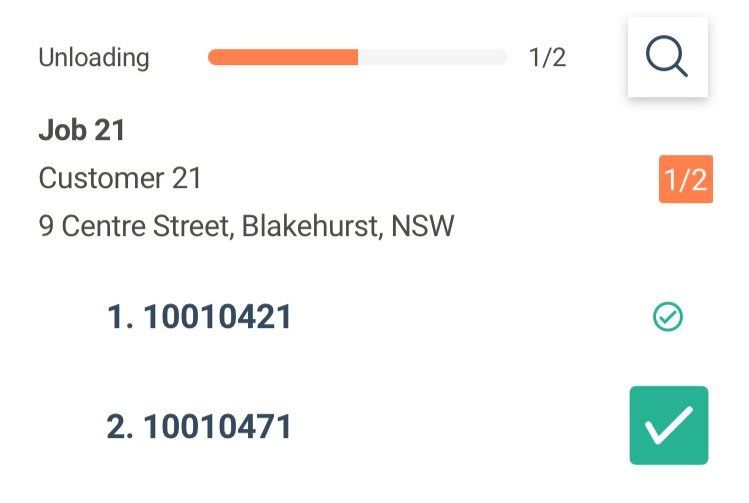
Scanning barcodes at loading and delivery is a great way to efficiently track Units or parcels, it is an important part of a delivery management system.
However, sometimes it’s not possible to scan barcodes. Maybe your client’s labels don’t have barcodes, they aren’t unique barcodes or the data connection isn’t properly set up. Whatever the reason, you still may want to track at a Unit level so, as of March 2023, we’ve updated Tarot Routing to make this configurable. Allowing you to check off Units as Loaded or Delivered in the Driver App instead of scanning barcodes.
This tutorial will detail how to configure your organisaion to make deliveries with no barcode scanning required.
App Settings
Log into your Tarot Routing account. You must have a Warehouse Manager Role to make this update. Open the Admin Panel and navigate to Organisation Settings > App Settings.
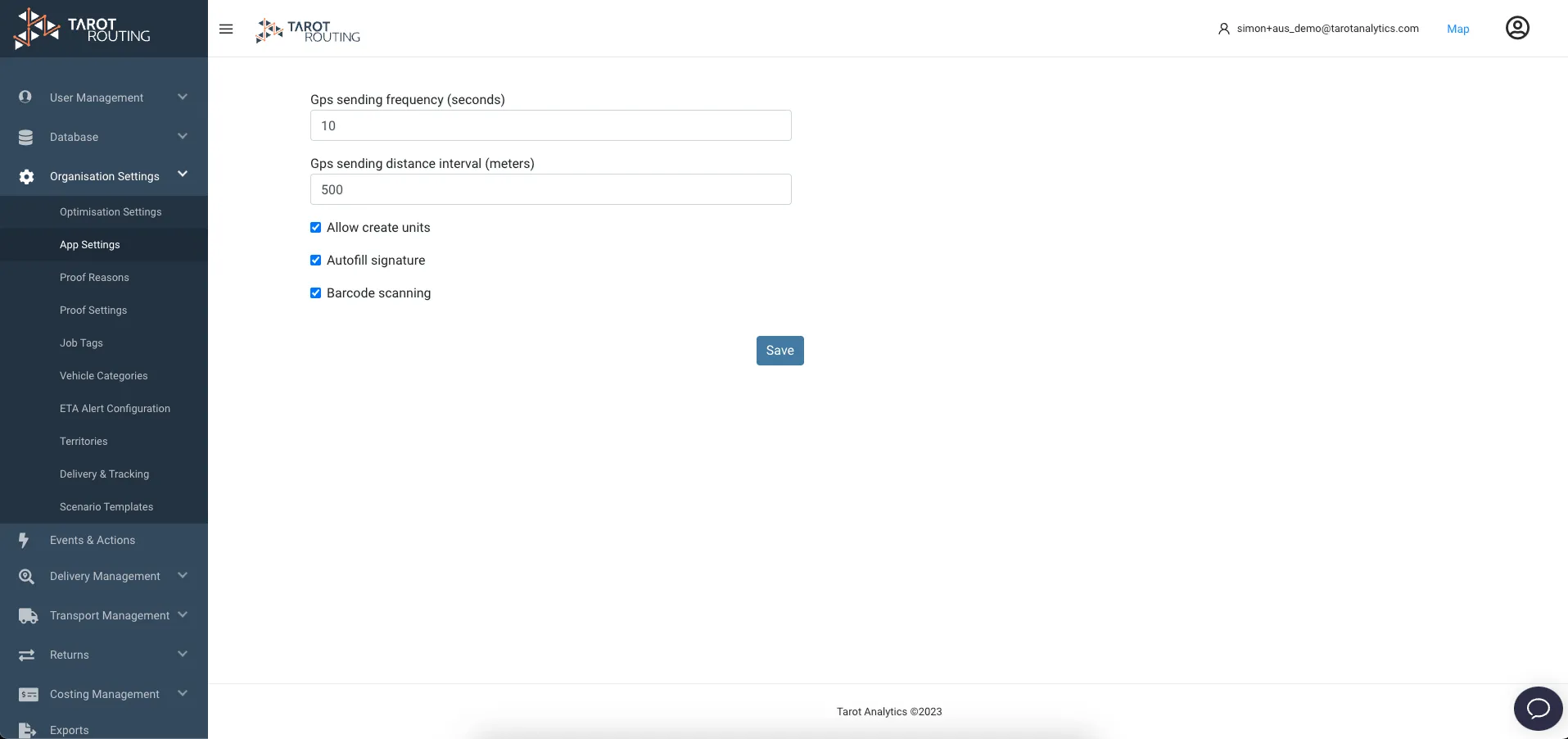
Here you will see the App settings you can control at an organisation level. By default Barcode Scanning checkbox is ticked and set to true. This means that everytime a Driver loads a Runsheet the App will be told that Units have barcodes to be scanned at Loading and Delivery.
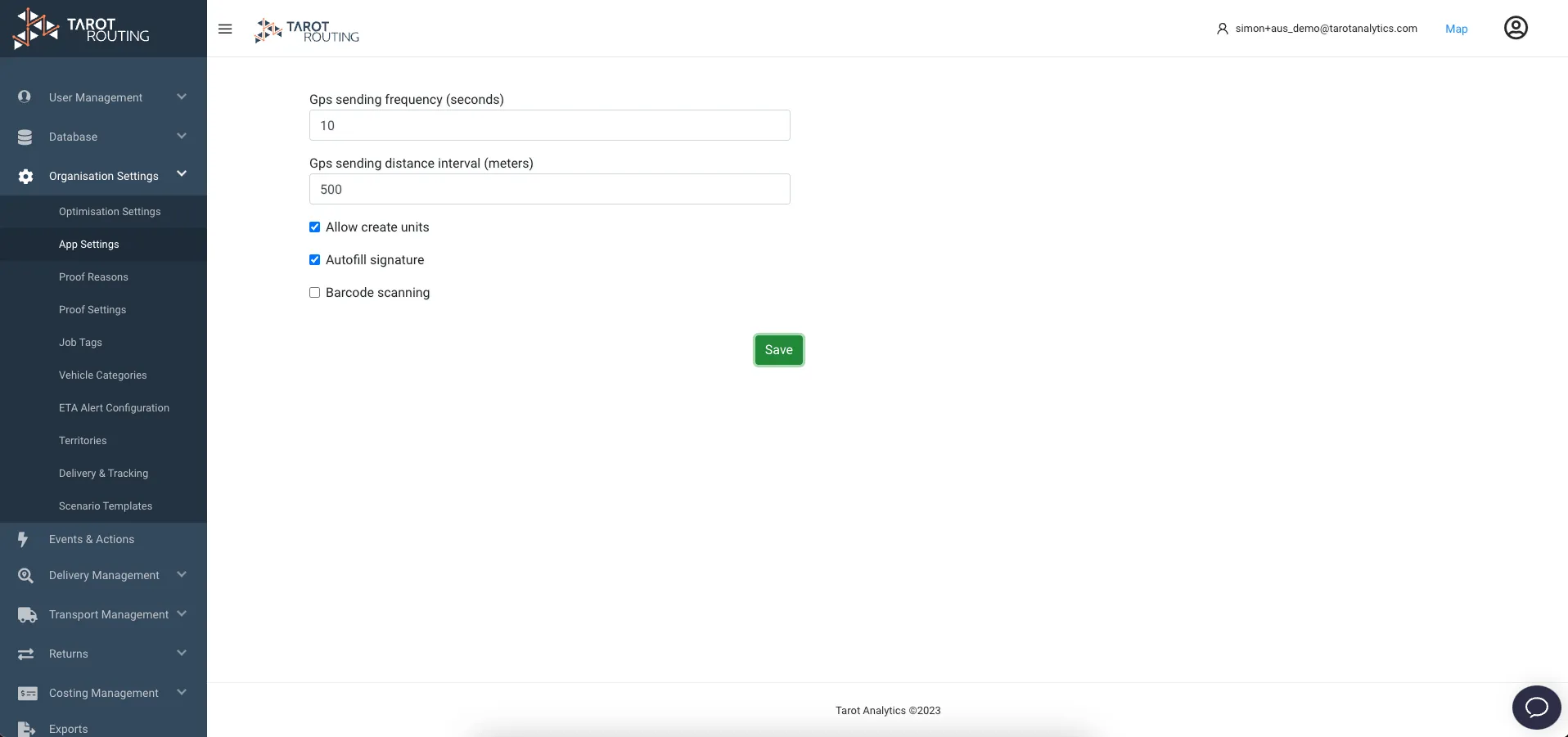
To turn barcode scanning off, uncheck the box and click save. Now when a runsheet is loaded the App will be told that Units need to be checked off and not scanned
Driver App
With barcode scanning off the experience changes slightly for the driver. When a Runsheet with Units is loaded they still see the loaded and delivered progress bars but when clicking on Loading a checklist is opened instead of the camera to scan barcodes
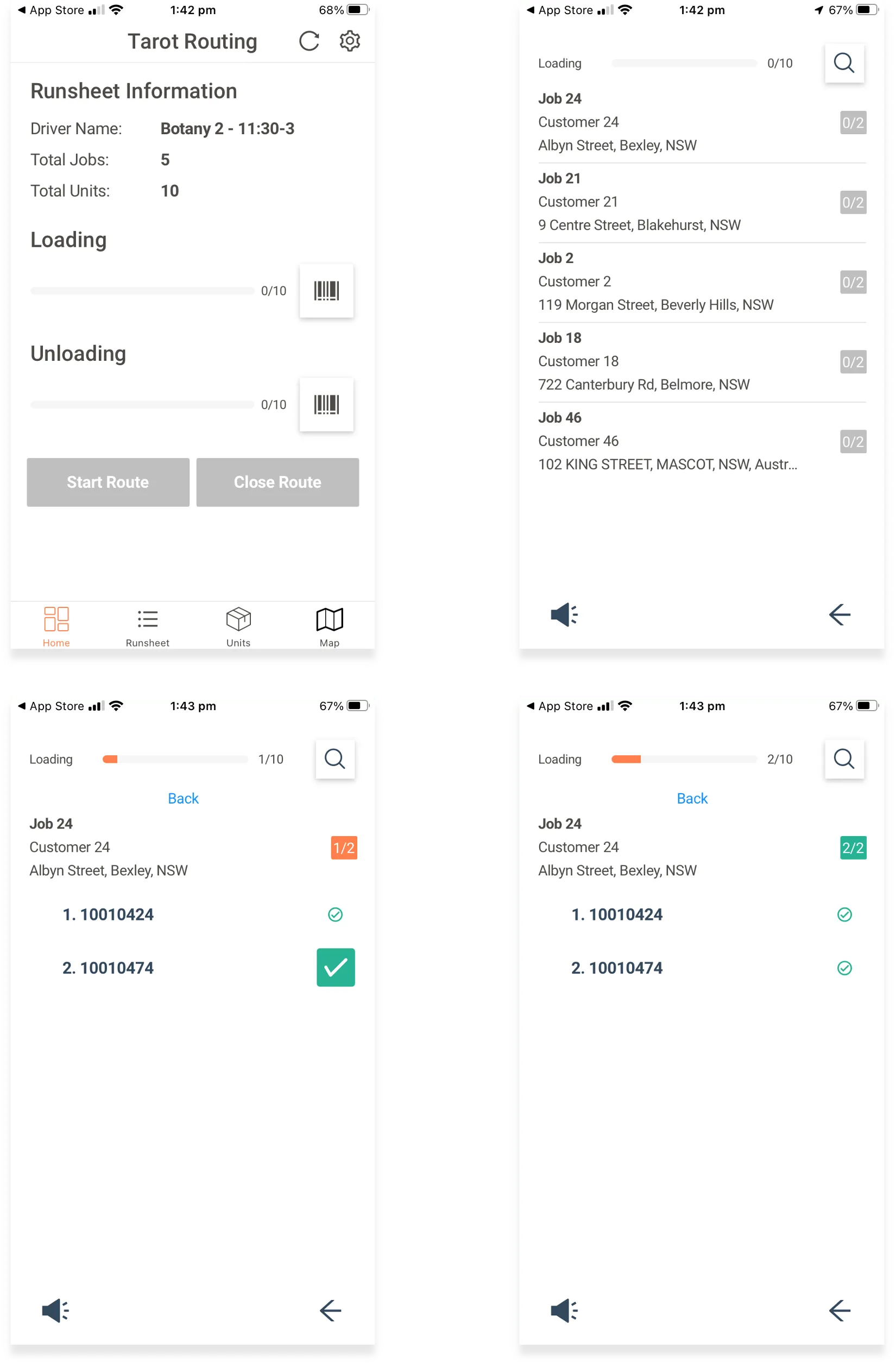
The same thing happens at delivery when a driver opens the delivery checklist. Clicking Unload opens a checklist instead of the camera
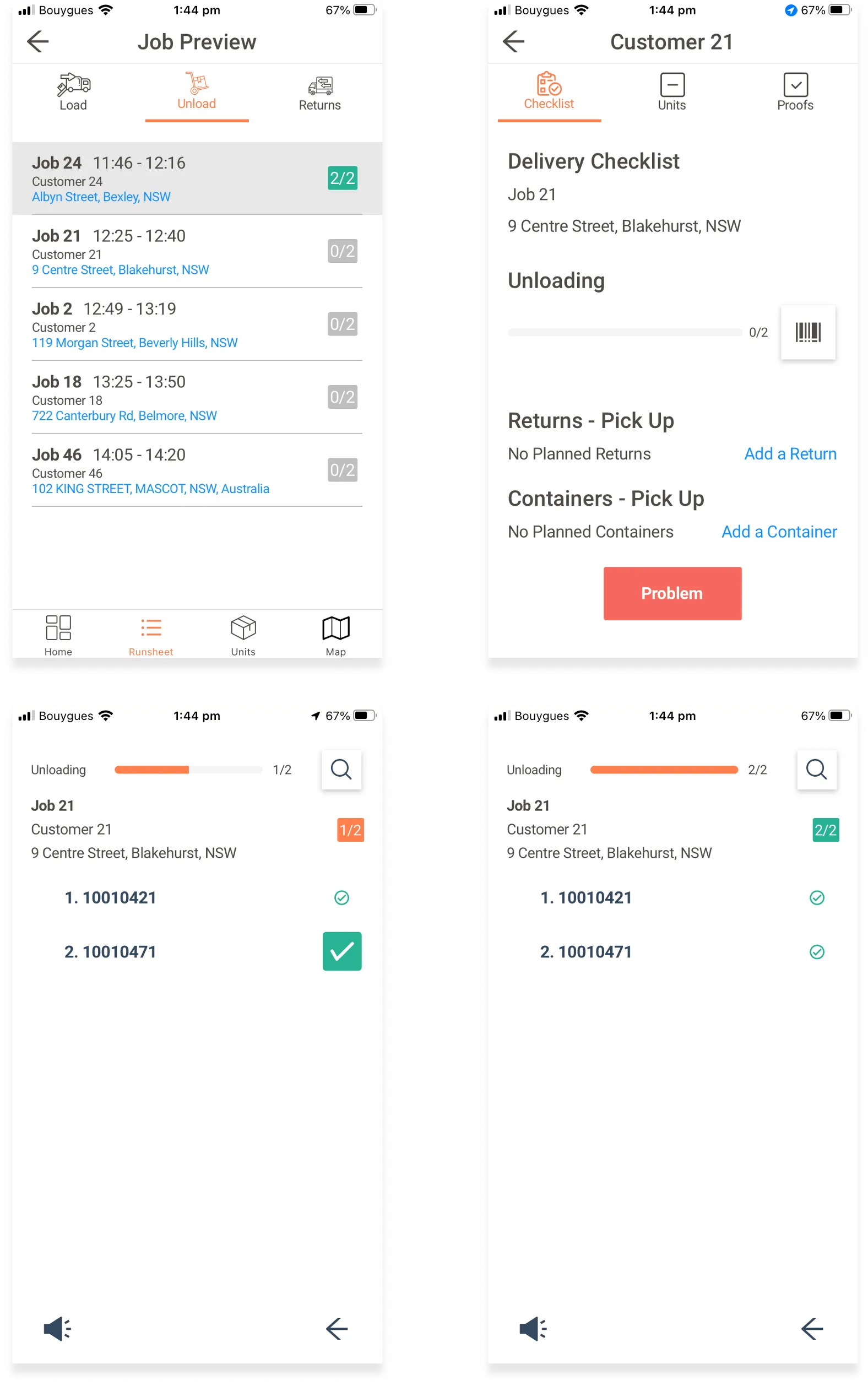
At both loading and delivery the driver should check off each Unit. In the same way as with barcode scanning, if there is an issue (damaged, missing etc.) the driver can select the appropriate Proof Reason and mark the Unit appropriately.