
Your crew has just carried a new washing machine into the kitchen when the customer asks, “Can you take the old one?” Old appliance removal sounds like a small favour, but handled badly it leaves you with unrecorded items on the van or a customer stuck with their old sofa, and a second trip nobody planned.
It usually comes up in one of three ways: the removal was booked with the order, the customer asks at the door, or the item can’t leave today. This post covers how to handle each one, and how to use Tarot Routing’s Returns features to keep a record of every old item from the customer’s home to your depot.
Why haul-away goes wrong
Old items fall outside the process you’ve built for new ones:
- There’s nothing to scan. New stock arrives with a barcode. A ten-year-old fridge doesn’t.
- The office finds out late. A removal agreed at the door often reaches the planner as a phone call, or not at all.
- The warehouse can’t match items to customers. Old items come off the van with no paperwork.
- You have no evidence. When a customer asks what happened to their old item, you’re relying on the crew’s memory.
The fix is to give the old item its own record, the same way a new item has one.
Treat the old item as a Return
In Tarot Routing, an item you’re taking away is a Return. Each Return has two Proofs: Pick up at the customer’s address, and At depot when it’s back at your warehouse. Returns are included on the Business and Enterprise plans.
Give the item something to scan
An old appliance has no barcode, so decide in advance what the driver scans:
- If you know about the removal, set the Return’s UID to a code you’ve printed on the delivery paperwork as a label or QR code, or sent to the customer to show on their phone. The scanned code has to match the UID, otherwise the Driver App treats it as a new Return.
- If you don’t, keep a roll of pre-printed return labels in the van. The driver sticks one on the item and scans it.
If your organisation doesn’t scan barcodes, drivers tick Returns off a checklist instead and can add one by name.
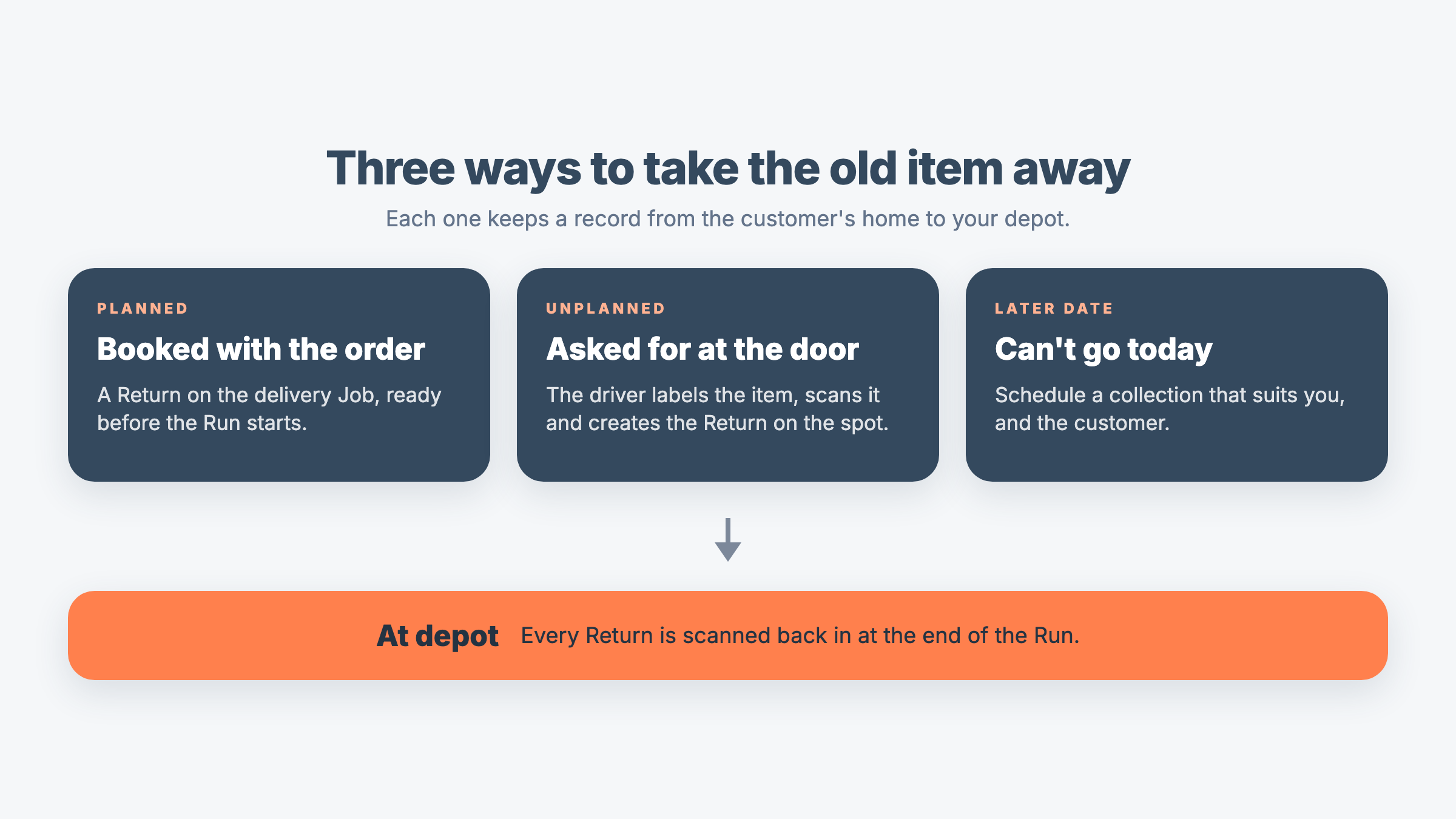
Three ways to handle old appliance removal
| Situation | Who sets it up | Where the Return sits |
|---|---|---|
| Booked with the order | Planned Return created by a planner (or via API) attached to delivery Job prior to departure | Attached to the delivery Job |
| Asked for at the door | Unplanned Return created by the Driver on customer site | Attached to the delivery Job |
| Can’t go today | Planned Return created by a planner (or via API) attached to a new Job scheduled separately to the delivery Job | Attached to a new collection Job, on a later date |
1. Booked with the order
When a customer requests removal at checkout or over the phone, add a Return to the delivery Job before the Run starts via Job Attachments. If your order system sends Jobs through the API, it can send the Return with the Job.
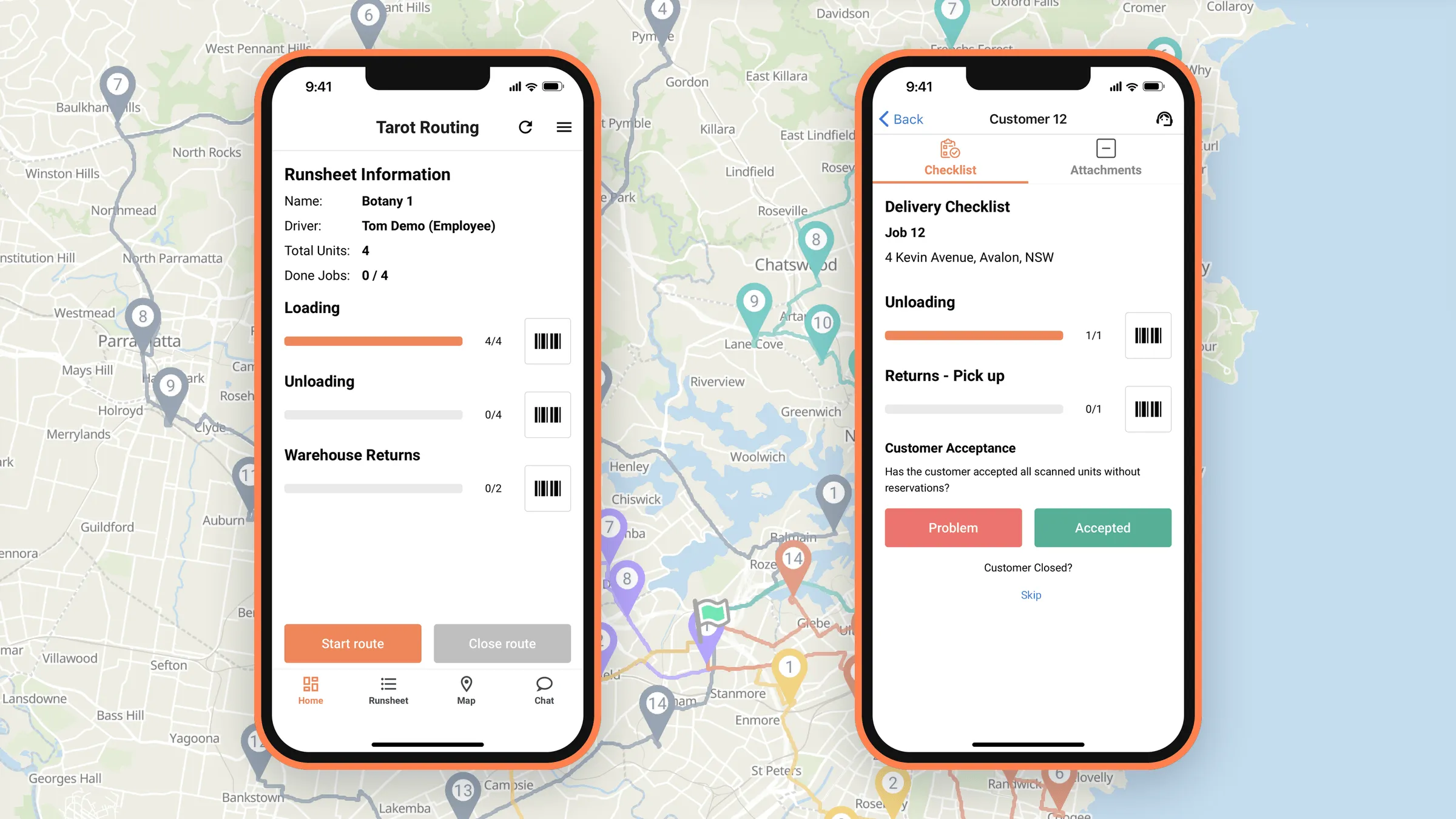
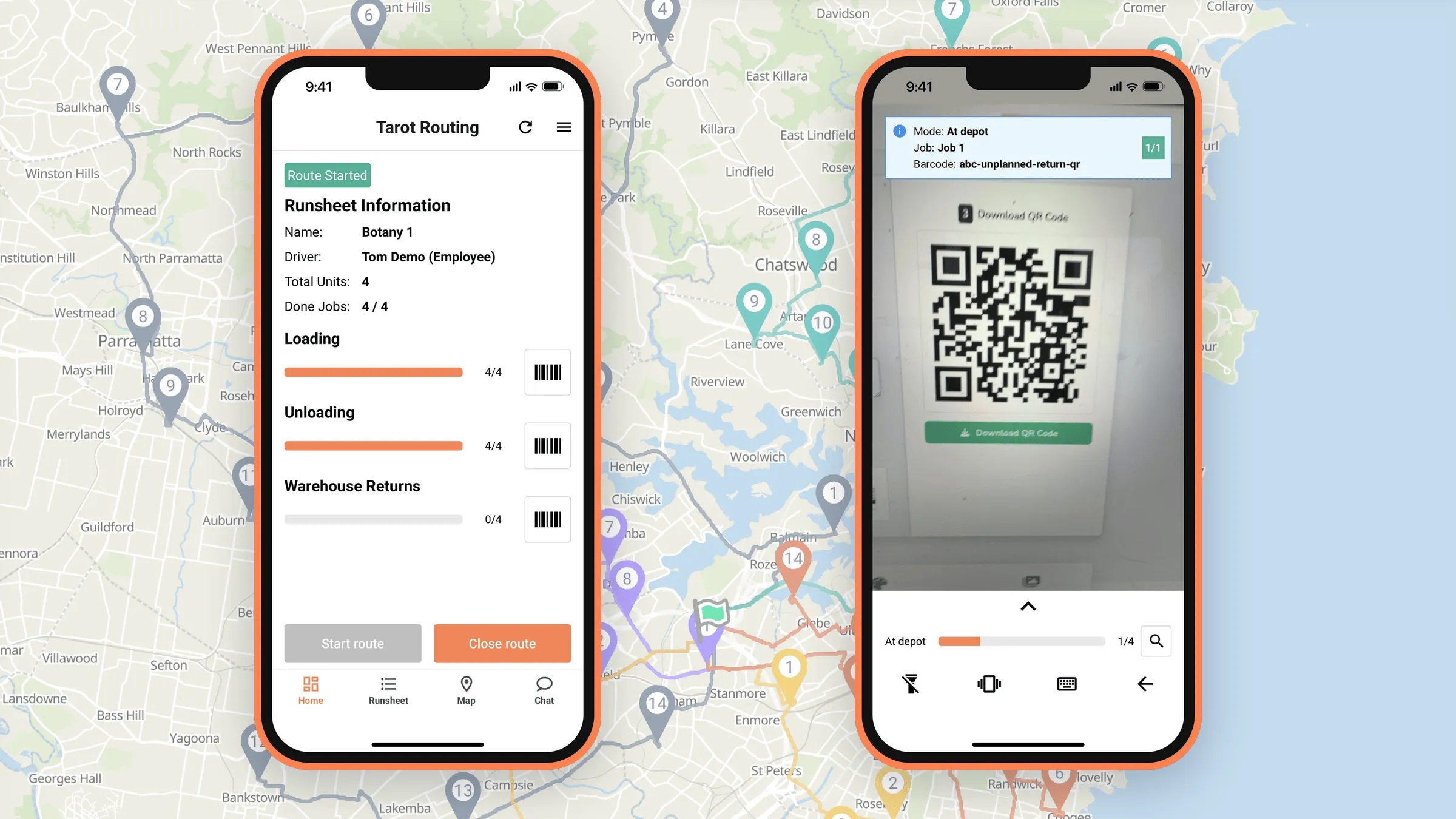
The crew then knows what’s coming. As soon as the Runsheet loads, Home shows the total planned Warehouse Returns, and the Job’s Delivery Checklist shows Returns - Pick up under Unloading.
At the customer’s address, the driver unloads the new item first, then uses the barcode button beside Returns - Pick up and scans the old one. If it isn’t there, or the customer has changed their mind, the normal exception workflows can be followed and the driver can record an unsuccessful Pick up.
2. Asked for at the door
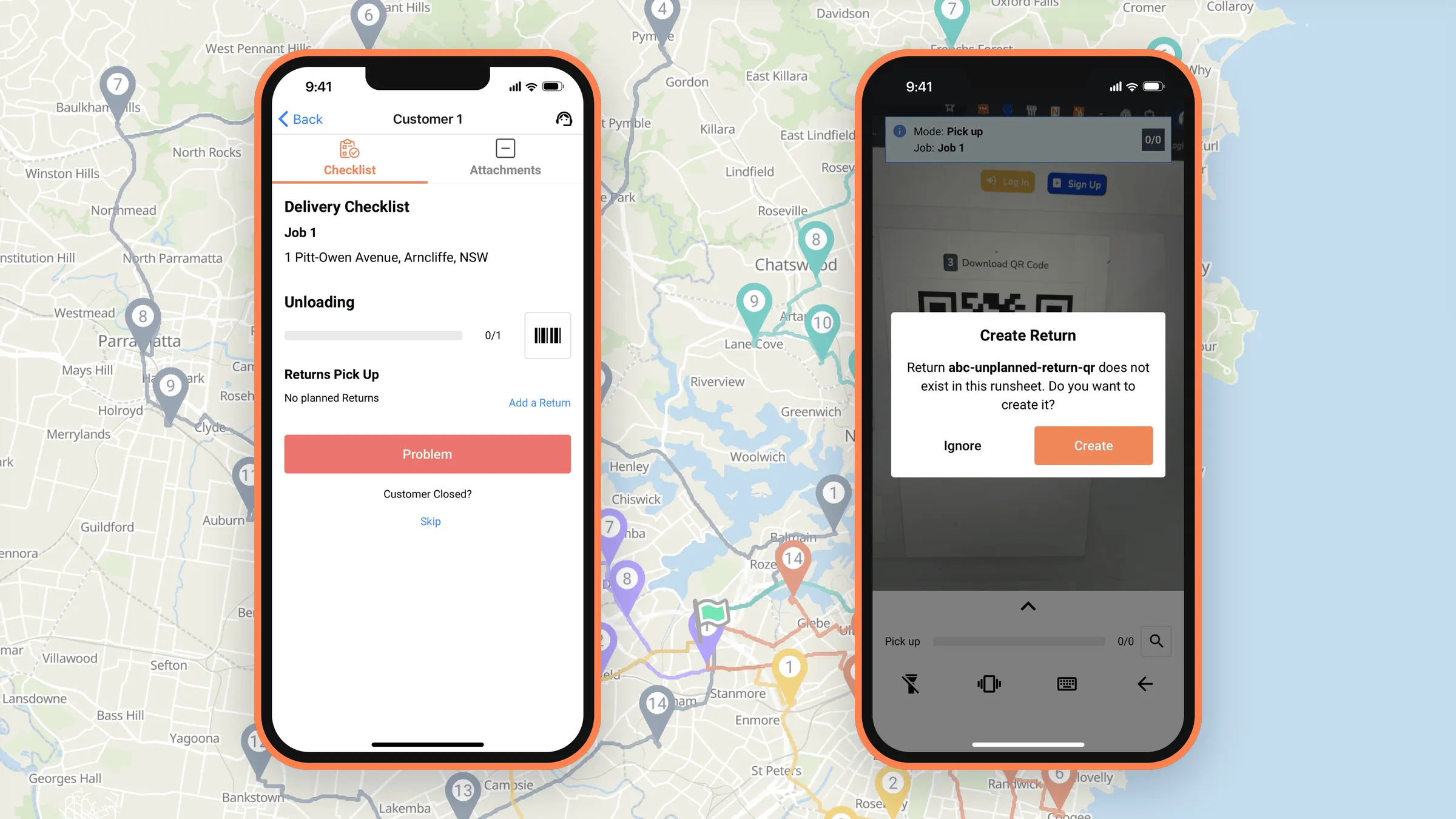
If nothing was planned, the Delivery Checklist shows No planned Returns, with Add a Return beside it.
- Stick a label from the van on the old item.
- Tap Add a Return, which opens the camera.
- Scan the label and check that the code on screen matches it.
- Tap Create. The Return is attached to the current Job with a successful Pick up.
The same Create prompt appears if the Job already has planned Returns and the customer hands over something extra. The Return then shows under the Job, so your planners can see it without a phone call.
Ask crews to add the Return before they complete the Job. It’s also worth deciding before the crew is on the doorstep what they can accept, and whether removal costs extra, so nobody is negotiating on the customer’s driveway.
3. Can’t go today: schedule a return visit
Sometimes the old item can’t leave on the day: the fridge hasn’t been defrosted, the washing machine is still plumbed in, or there’s no room on the van. Schedule a collection for another day.
- Create a Job at the customer’s address, in a Scenario with the Scheduled Date you’ve agreed with the customer, or in the Job Pool if the pickup date isn’t known.
- Create the Return as a Job Attachment.
- Optional: add a Job Tag “Return Pickup” or something similar, so everyone knows that this is a pickup.
- Optimise as normal. Tarot Routing places the collection in a Run with that day’s other Jobs, rather than sending a van out for one item.
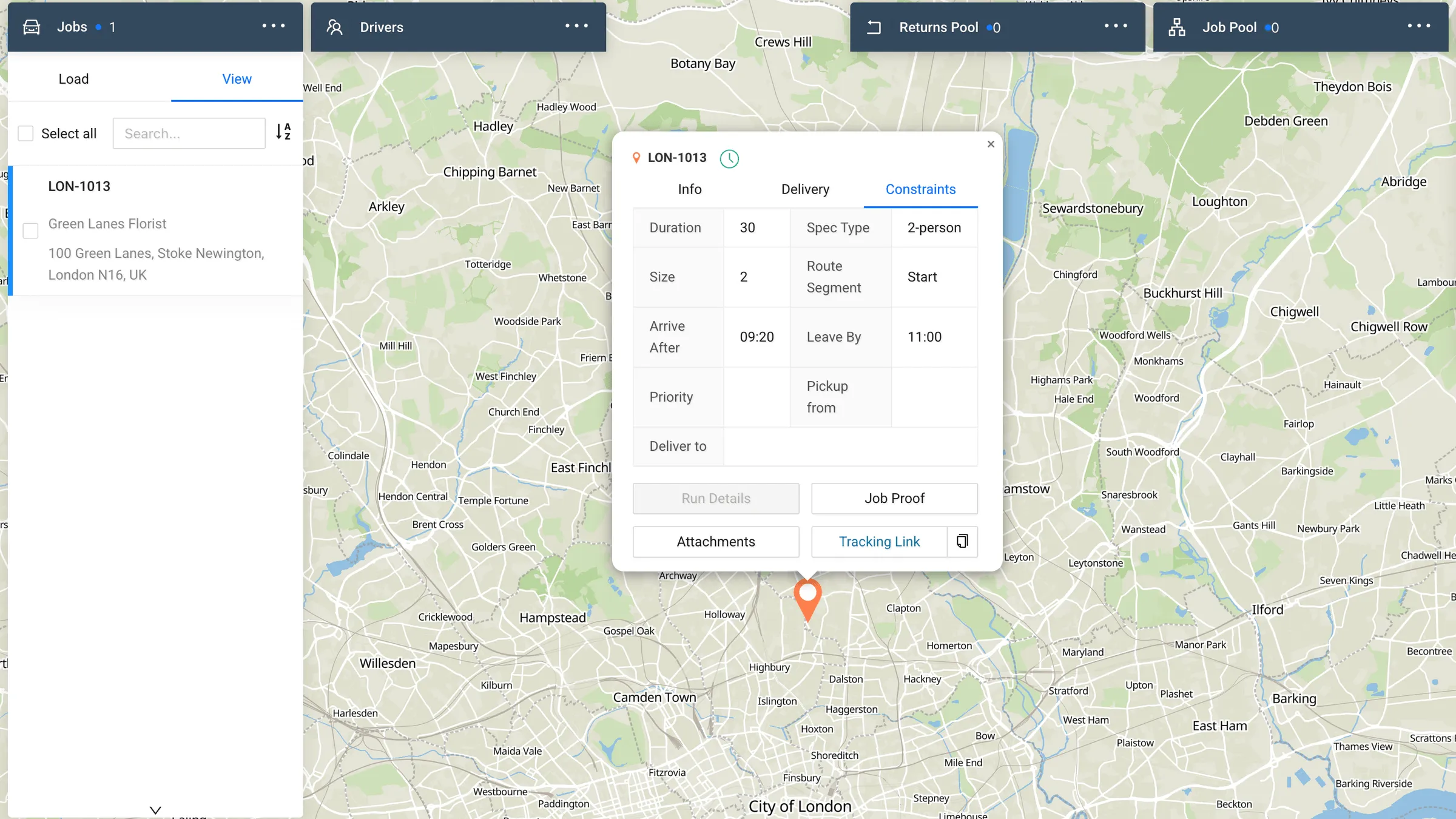
The customer can get the same notifications and live ETA as they would for a delivery. Check that your message wording suits a collection, so nobody is told their delivery is on its way.
Back at the depot
All three end the same way, at the warehouse with an At depot scan. With the Run closed, the returned items can be processed responsibly: recycled, sold second-hand or donated to charity.
Summary
- Decide what drivers scan before your first removal: labels in the van, plus printed or phone QR codes for planned removals.
- Put a Return on the delivery Job when the removal is booked with the order.
- Use Add a Return for anything agreed at the door.
- Create a collection Job with a Return for anything that can’t go today.
- Scan every Return in at the depot, so each old item has a record from the customer’s home to your warehouse.
For the rest of the delivery, from time windows to two-person crews and proof of delivery, see furniture and appliance delivery or book a demo to see Tarot Routing in action.
Old appliance removal: frequently asked questions
What if the old item doesn’t have a barcode?
Drivers scan a return label or QR code instead. Keep pre-printed labels in the van for removals agreed at the door, and print or send a QR code for removals you have planned.
Does removal need a separate trip?
Not usually. A Return can sit on the delivery Job, so the crew collects the old item on the same visit. Only items that can’t leave on the day need a collection Job, and that’s routed with the other Jobs on that date.
Can a driver add a Return the office didn’t plan?
Yes. Add a Return in the Driver App creates a Return on the current Job, with a Pick up Proof, while the driver is at the customer address.
Which Tarot Routing plans include Returns?
Returns are included on the Business and Enterprise plans.